Дорогие друзья! Добро пожаловать на мой официальный сайт. Я искренне рад, что Вас заинтересовало моё творчество и Вы решили заглянуть ко мне в гости! Приятного Вам времяпровождения и отличного душевного настроения!
What exactly is a collapsing module? It's quite simple, whenever a module is not published to a postion that position does not appear on the frontend of the template. Consider the example below:
This particular row has 6 module positions available to publish to. Let's say you only want to publish to 4 of these positions. The template will automatically collapse the modules you do not want to use and adjust the size of the modules accordingly:
If no modules are published to the row the entire row itself will not show. The best feature of this is every module can be published to its own unique pages so the layout of your site can change on every page!
Infinite Layouts
Because there are so many module positions available in so many different areas, the number of layouts you can create are limitless! For example, if you would like to show your main content area on the right side of your site but still have a column of modules, simply published your modules to the right or right_inset positions or both. The same would be true for the opposite, if you want a column on the left simply publish modules to left or left_inset. Of course you can always choose to not have a column at all. Remember, any module not published to will automatically collapse and the remaining area will automatically adjust. There is no need to choose a pre-defined layout for your entire site, simply use the power of collpasing module positions and take advantage of the numerous amount of module positions to create any layout you can dream of! Be sure to checkout the layout of modules below.
Dozens of Modules
Below is a complete list of all the module positions available for this template.
How to install and setup module styles:
Download any module you wish to publish to your site.
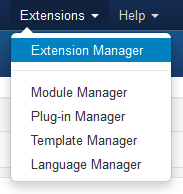
In the backend of Joomla navigate to the menu item Extensions/Install Uninstall
Browse for the module's install file and click Upload File & Install.
Once the module has be installed navigate to the menu item Extensions/Module Manager (same menu as above)
Find the Module just installed and click on it's title.
Change any parameters that you wish and be sure to set it to published and publish it to your desired module position.
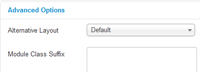
To apply a module style simply fill in the module class suffix field with any of this template's included module styles. This parameter setting is found under Module Parameters on the right side of the screen.
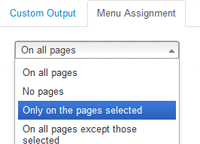
Assign what pages you would like the module to appear on and finally click Save.


 This particular row has 6 module positions available to publish to. Let's say you only want to publish to 4 of these positions. The template will automatically collapse the modules you do not want to use and adjust the size of the modules accordingly:
 If no modules are published to the row the entire row itself will not show. The best feature of this is every module can be published to its own unique pages so the layout of your site can change on every page!